How to make ads in Claude and ChatGPT with MCP
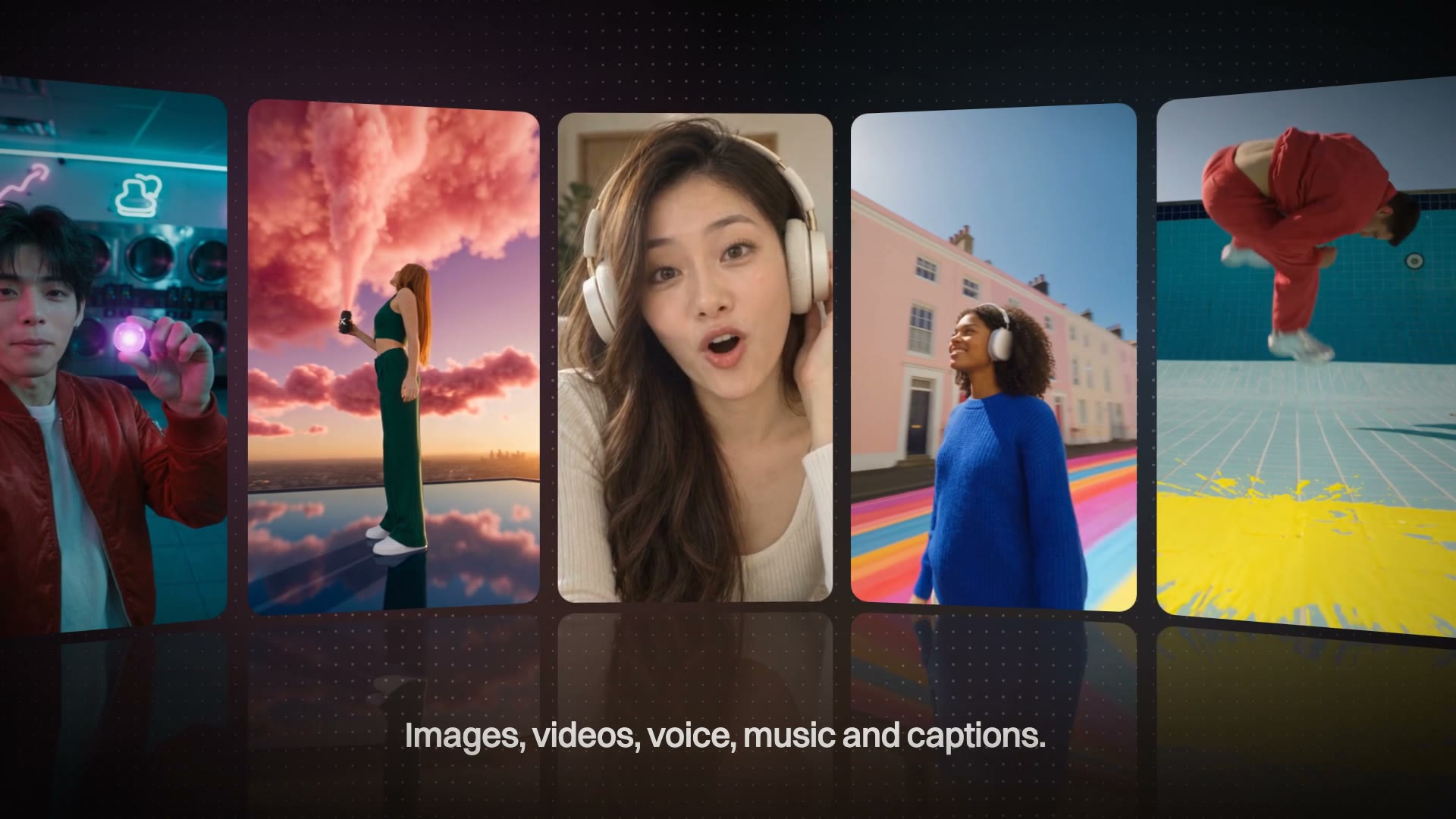
Connect MarketingX to your assistant, then start from four working prompts for a product scene, a product video, a UGC clip and a video edit.
Short answer: to make ads in Claude or ChatGPT, add the MarketingX MCP server, sign in once, and ask for the ad in the chat. When a job needs your photo, a drop zone opens in the conversation. The result comes back in the chat, and the file is saved to your MarketingX workspace.
MCP, the Model Context Protocol, is the open standard AI assistants use to reach other apps. It suits ad work because the chat is often where the brief gets written. With MarketingX connected, the same conversation can make the creative.
What do you need to make ads in Claude or ChatGPT?
- An assistant that takes MCP connections. This guide covers Claude and the ChatGPT app. Claude Code, Cursor and VS Code have their own steps on the MCP page.
- A MarketingX account. You can create one at the sign-in step. There is a Free plan, and no credit card is required to start.
- Credits. Connecting is free. Each generation spends credits from the workspace you connect.
How do you connect MarketingX to Claude?
- On the MCP page, pick Claude and choose Add to Claude. Claude opens with MarketingX and its URL filled in.
- Review the connector and choose Add.
- Choose Connect, sign in to MarketingX, pick a workspace and approve access.
- In any chat, turn MarketingX on from the + menu.
How do you connect MarketingX to ChatGPT?
- On the MCP page, pick ChatGPT and choose Open in ChatGPT. The ChatGPT app opens with the setup written in.
- Send the message, and ChatGPT adds MarketingX.
- Approve access in your browser. If no browser opens, use the link ChatGPT gives you.
- Start a new chat. The tools load with the next chat, not the one that added them.
What should you ask for first?
Name MarketingX in the message, so the assistant reaches for it, and name a model when you want a particular one. The four results below were made this way, through the MCP, and each prompt is ready to paste.
A product scene, without the shoot
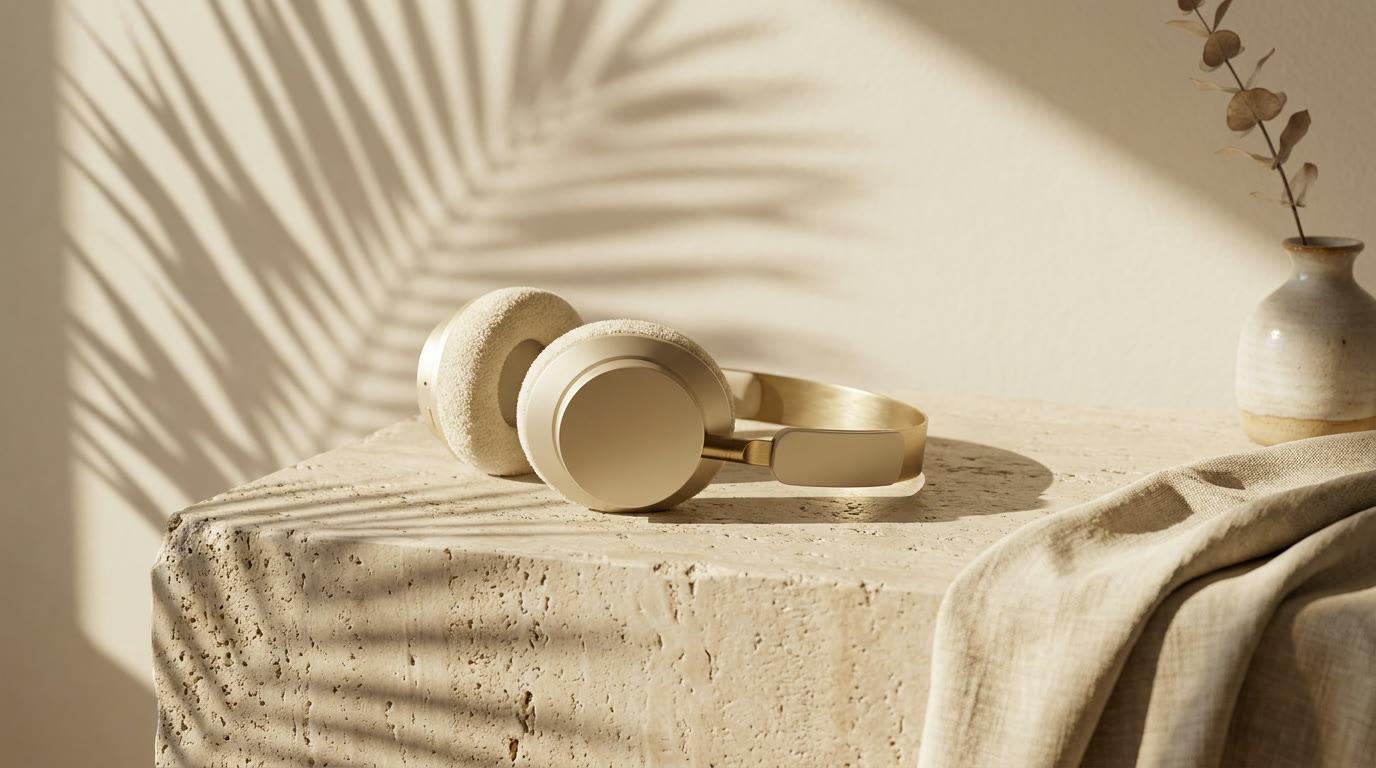
Use MarketingX with Nano Banana Pro to put the product from my photo on a raw travertine plinth in a sunlit minimal room, palm leaf shadows on a cream wall, warm late-afternoon light, premium and calm. 16:9 at 1K. Ask me to upload the product photo first.
A product photo, in motion
Use MarketingX to turn my product photo into a 5 second 16:9 video with Seedance 2.5 at 720p. Ask me to upload the photo first. Slow dolly-in, palm leaf shadows swaying gently on the wall, warm afternoon light, and the product stays exactly as it is.
A UGC clip with sound
Use MarketingX to make a 16:9 UGC clip. Ask me for a photo of the creator and a photo of my product. With GPT Image 2.5, make a frame of her in her living room wearing the product and talking to camera, then animate it with Seedance 2.5: 8 seconds with sound, a static camera, as she tells the viewer why she loves it.
The same clip, at night
Use MarketingX to edit a clip with Kling O3 Edit. Ask me to upload a clip of 3 to 15 seconds, then turn it into night: a cool blue moonlit glow, warm neon city lights through the window and magenta reflections on the product, keeping the camera move and every object exactly as they are.
How do you get your product photo into the chat?
Ask the assistant to ask you for it, as the prompts above do. MarketingX opens a drop zone in the conversation, and you drop the file there. Attaching a file to your chat message does not reach the workspace, so use the drop zone. A file can be an image, a video or audio, up to 25 MB.
How do you get better results from a chat?
- Say where it will run. Stories and Reels take 9:16, feeds 1:1 or 4:5, and the ratio follows from that.
- Say what it is for. 1K suits drafts and social, 2K a hero image. Each step up costs more and takes longer.
- Ask for variations in one message. One request can return up to four images.
- Name your product. When a product is in your workspace, its logo goes in as a reference, which keeps the creative on brand.
- Check the balance first. Ask how many credits you have left before a long job.
What else can you do from the chat?
Research runs there too. Read the ads your tracked competitors are running, with how long each has been live, and pull trending Google searches and TikTok hashtags. On the making side, you can generate a voiceover or music, turn an image into three opening hooks, have a creator speak your script, and caption, cut and render a video project.
Our guides go deeper on each job: how to make UGC video ads, turn a product photo into a video ad, make video ad hooks and spy on competitor ads on Meta.
Questions people ask
Does Claude or ChatGPT make the ad?
The assistant writes the request and calls MarketingX. The model that runs, such as Seedance 2.5 or Nano Banana Pro, makes the file.
Do I need an API key?
No. You sign in with your MarketingX account and approve the connection in your browser.
What does it cost to make ads in Claude?
Connecting is free. Each generation spends credits from the workspace you connected, the same credits you use in the studio.
Which models can I use?
The image, video, voice and music models your plan opens. Leave the model out and MarketingX picks one for the job.
Where do the results go?
To the workspace you connected, filed under that day's MCP project, so you can open them in the studio and keep working.
Can one connection reach two workspaces?
No. A connection is bound to the one workspace you pick at sign-in.
Can it launch ads on Meta or Google?
No. The MCP makes the creative and saves it to your workspace. To launch on Meta, use Campaign in the studio.
Connect MarketingX and make ads in Claude or ChatGPT from your next chat.